Go to content
kafinea logo svg

Kafinea

  • Features
        • Finance
          • Purchasing
          • Audits & KPIs
          • Accounting
          • Invoicing
        • Management
          • Documents
          • Project Management
          • Inventory Management
          • Maintenance
        • HR
          • Employees
          • Timesheets
          • Absence Management
          • Recruitment
        • Customer Service
          • Service Contracts
          • Interventions
          • Warranty Management
          • Tickets
        • Sales
          • Subscriptions
          • Sales Automation
          • CRM
          • Points of Sale
        • Cross-features
          • API
          • Extranet
          • Electronic Signature
          • Workflows
  • Pricing
  • Login
  • Request a demo
kafinea logo svg
Kafinea

Marketing

6
  • Prospects
  • The business
  • Sending emails and SMS
  • Campaigns
    • Marketing campaigns
    • Setting up email and SMS campaigns
    • Calculating forecast margins for a campaign

Sales

13
  • Customer accounts
  • Contacts
  • Customer quotations
  • Customer purchase orders
  • Customer credit notes
  • Invoicing
    • Electronic invoicing
    • Classic invoicing
    • Advancement invoicing
    • Item consumption invoicing
  • Payments
    • Customer payments
    • Associating a payment with one or more invoices
  • Price list
    • Pricing strategies
    • The use of a price list

Purchasing

5
  • Suppliers
  • Supplier purchase orders
  • Supplier invoices
  • Supplier payments
  • Supplier credit notes

Catalog

4
  • The products
  • Services
  • Product families
  • Units of measurement

Finance

18
  • Manual entries
  • SEPA mandates
  • Bank accounts
  • Third-party bank accounts
  • Banking transactions
  • Direct debits
  • Accounting
    • Accounting
    • Accounting strategies
    • Accounting entries
    • Bank reconciliations
    • Bank statements
    • Financial statements
    • VAT declaration
    • Setting up VAT returns
    • Tools for checking your accounts
    • Accounting export in FEC format
  • Accounting periods
    • Accounting periods
    • Cash accounting

Human Resources

12
  • The people
  • Sample employment contracts
  • Workplaces
  • Services
  • Service assignments
  • The activities
  • Versatility matrices
  • Training courses
  • Timesheets
  • Expense reports
  • Leave requests
  • Types of absence

Project Management

4
  • The projects
  • Project tasks
  • Project milestones
  • Participation in projects

Maintenance

4
  • Maintenance sites
  • Our facilities
  • The equipment
  • Maintenance operations

Customer support

6
  • Tickets
  • FAQs
  • Service contracts
  • Warranty Management
  • Customer instances
  • Customer equipment

Inventory Management

7
  • Delivery methods
  • Receipt slips
  • Stock transfer requests
  • Delivery notes
  • Storage sites
  • Storage locations
  • Inventory movements

Points of Sale

5
  • Cash movements
  • Physical sales outlets
  • E-commerce stores
  • Cash register
    • Setting up your cash register
    • Cash registers

Kafinea tools

15
  • REST API
  • Electronic Document Management
  • Automatic input from a PDF
  • Event log
  • Electronic invoicing
  • Data import/export
  • Sending documents by email
  • The electronic signature
  • Models
    • Document templates
    • Email templates
    • Shortcodes
  • Automation
    • The forms
    • The planner
  • Extranet
    • Customer portal
    • The employee portal

Kafinea interface

7
  • Navigation
  • Dashboards
  • Listings
  • The recordings
  • Tags
  • Reports
  • The layout manager

Setting

10
  • User preferences
  • Global search
  • Numbering formats
  • Access rights
  • The users
  • The companies
  • Languages and translations
  • SMTP settings
  • Data mapping
    • Project business mapping
    • Lead conversion mapping
  • Kafinea
  • Documentation
  • Sales
  • Invoicing
  • Advancement invoicing
View Categories

Advancement invoicing

3 minutes

The progress invoice is used to invoice the various stages of a project or work in progress.

Widely used in certain sectors, this invoicing model is applied as work is carried out, rather than invoicing in full at the end of the project.

This invoicing system makes it possible to monitor the project more closely, and to stagger payments according to the work carried out, by means of multiple intermediate invoices. 

These invoices are issued on the basis of one or more quotations or a purchase order. The price shown on progress invoices is calculated according to a percentage that we call "Progress", depending on the project or work in progress.

Finally, a closing invoice will be issued on delivery of the project or work, showing the list of progress invoices issued previously and the amount still to be paid, less any payments already made.

Good to know: The progress invoice differs from the deposit invoice , which is usually issued when the quotation is signed, to request and/or record payment before work begins.

And in Kafinéa? #

The progress invoice is a feature specific to sales invoice and can be selected when the invoice is created.

Selecting this option in the ProgressInvoicing group, brings up the characteristic fields for the function.

Direct creation #

In the case of the initialinvoice project progress invoice, after selecting the customer account and carefully filling in the invoice subject, you will need to import the lines of one or more quotations or purchase orders, using the Import quotation lines and Import purchase order lines buttons available at the bottom of the page.

If the initial progressinvoice already existsselect the previous progress invoice (from the Progress Invoicing group), again after selecting the customer account. The detail lines will be added automatically.

When the invoice is saved, the progress number is automatically incremented according to the previous progress invoice selected.

It is possible to duplicate an existing invoice . In this case, you must select a new invoice from the previous progress invoice. The detail lines will then be updated automatically.

Creating from a quote #

Creating from a purchase order #

Detail lines #

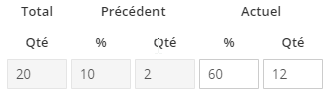
Once the invoice lines have been imported using one of the methods described above, the elements used to define the progress of a detail are available in each line, in the form of a 5-column summary table, 3 of which are read-only.

Total, Quantity : the total quantity indicated on the quotation. This value is for information only and cannot be changed in the invoice.

Previous: %, Quantity : This is the quantity or percentage equivalent already invoiced in previous progress invoices. This value is for information only and cannot be changed in the invoice. In the case of the first progress invoice , these values are 0.

Current: %, Quantity : This is the quantity or percentage equivalent of the progress at the current date. These values are to be entered by the user creating the invoice. Choosing values for these boxes will automatically generate the quantity to be invoiced for this invoice.

Example: To date, the actual progress of the project is 60%.

The Total section shows a quantity of 20 items.

The Previous section shows a quantity of 2, i.e. 10%. At this point, we can deduce that 10% progress has already been invoiced for this project.

The value 60% should be entered in the Current section, i.e. a quantity of 12 (12 items out of 20 have already been physically used for the project). A quantity of 10 will be automatically deducted by the system in order to invoice the missing complement to achieve 60% progress.

The line detail also contains the option: Progress completed , in the form of a checkbox.

This option allows you to define that the detail will not progress any further, even if the 100% mark is not reached. If this option is selected, the boxes in the 'Current' section will be read-only. It will not be possible to invoice this line on the next progress invoice , as long as this option is selected.

Good to know: It is not possible to invoice a line above 100%. Logically, extra work must be covered by a validated estimate, which can then be added to the invoice. It is also possible to add a 'free' item or service line, not linked to a quote or purchase order. If such a line is added to a progress invoice , it will also be available for the next progress invoice .

Good to know: You can organize the invoice for greater readability by adding sections using the Add Section button at the bottom of the page. The section is automatically numbered, and an explicit title can be added.

The closing invoice #

Index
  • And in Kafinéa?
    • Direct creation
    • Creating from a quote
    • Creating from a purchase order
    • Detail lines
    • The closing invoice

All-in-one software for SMEs. Take advantage of the automation capabilities and flexibility of our business management platform to facilitate the work of all your employees.

RESOURCES

Blog
Corporate identity
Distributors
Documentation
Security

Customer portal
ABOUT US

About Us
Contact Us
Cookie Policy
Frequently Asked Questions
General Terms of Use
Privacy Policy
Terms & Conditions

FINANCES

Accounting
Audits & KPIs
Invoicing
Purchasing

MANAGEMENT

Documents
Project management
Inventory management
Maintenance

HR

Absence Management
Employees
Recruitment
Timesheets

CUSTOMER SERVICE

Service contracts
Service
Warranty tracking
Tickets

SALES

CRM
Point of Sale
Sales Automation
Subscriptions

© 2026 Madiasoft -Kafinea

24 rue Louis Blanc, 75010 PARIS, France

01 70 06 05 41

Facebook Linkedin
kafinea logo svg
Manage cookie consent
To provide the best experiences, we use cookies to store and/or access device information. Consenting to these cookies will allow us to process data such as browsing behavior or unique IDs on this site. Failure to consent or withdrawal of consent may adversely affect certain features and functions.
Functional Always on
Storage or technical access is strictly necessary for the legitimate purpose of enabling the use of a specific service explicitly requested by the subscriber or Internet user, or for the sole purpose of transmitting a communication over an electronic communications network.
Preferences
Storage or technical access is necessary for the legitimate purpose of storing preferences that are not requested by the subscriber or person using the service.
Statistics
Storage or technical access used exclusively for statistical purposes. Storage or technical access that is used exclusively for anonymous statistical purposes. In the absence of a subpoena, voluntary compliance by your Internet service provider or additional third-party records, information stored or retrieved for this sole purpose generally cannot be used to identify you.
Marketing
Storage or technical access is necessary to create profiles of Internet users in order to send advertisements, or to track the Internet user on a website or on several websites with similar marketing purposes.
  • Manage options
  • Manage services
  • Manage {vendor_count} suppliers
  • Find out more about these purposes
View preferences
  • {title}
  • {title}
  • {title}
  • Features
    • Finance
      • Purchasing
      • Audits & KPIs
      • Accounting
      • Invoicing
    • Management
      • Documents
      • Interventions
      • Project Management
      • Inventory Management
    • HR
      • Employees
      • Timesheets
      • Absence Management
      • Recruitment
    • Customer Service
      • Service Contracts
      • Warranty Management
      • Maintenance
      • Tickets
    • Sales
      • Subscriptions
      • Sales Automation
      • CRM
      • Points of Sale
    • Cross-features
      • API
      • Extranet
      • Electronic Signature
      • Workflows
  • Pricing
  • Login
  • Request a demo