Skip to content
📢 Kafinea is a compatible solution for electronic invoicing! Learn more ➔
kafinea logo svg

Kafinea

  • Features
        • Finance
          • Accounting
          • Audits & KPIs
          • Invoicing
          • Purchases
        • Management
          • Documents
          • Inventory Management
          • Maintenance
          • Project Management
        • HR
          • Absence Management
          • Employees
          • Recruitment
          • Timesheets
        • Customer Service
          • Interventions
          • Service Contracts
          • Tickets
          • Warranty Tracking
        • Sales
          • CRM
          • Points of Sale
          • Sales Automation
          • Subscriptions
        • Cross-Features
          • API
          • Extranet
          • Electronic Signature
          • Workflows
  • Pricing
  • Login
  • Discover the demo
📢 Kafinea is electronic invoicing compatible! ➔
kafinea logo svg
Kafinea

Marketing

1
  • Leads

Sales

14
  • Customer purchase orders
  • Customer accounts
  • Customer Quotes
  • Customer credit notes
  • Company Search (Sirene)
  • Margins in quotes
  • Invoicing
    • Classic Invoicing
    • Progress Invoicing
    • Issue an electronic invoice
    • Recurring invoicing
    • Invoicing Article Consumption
  • Payments
    • Customer payments
    • Linking a payment to one or more invoices
  • Price list
    • Price list administrator guide

Purchases

5
  • Supplier invoices
  • Supplier Purchase Orders
  • Suppliers
  • Supplier Credits
  • Receiving an Electronic Invoice

Catalog

8
  • Units of measure
  • Products
  • Services
  • Sourcing Management
  • The Purchase Order Assistant
  • Generic products
  • Product kits
  • Catalog margin analysis

Finance

11
  • Bank Accounts
  • Manual entries
  • SEPA Mandates
  • Third-party bank accounts
  • Bank Transactions
  • Accounting
    • Accounting entries
    • Tools for Checking Your Accounting
    • Accounting
    • Financial statements
  • Fiscal years
    • Cash accounting
    • Fiscal years

Human Resources

5
  • Timesheets
  • Activities
  • Pay Slips
  • Employee Extranet
    • Leave Management
    • The employee portal card

Project management

2
  • Secure assignments using a people list
  • The responder area: view and accept my assignments

Customer Support

1
  • The Client Portal

Inventory management

4
  • Goods receipt notes
  • Delivery Notes
  • Stock movements
  • Inventory Valuation

Cash register

1
  • Cash Registers

Document management

3
  • Electronic signature
  • Templates
    • Email templates
    • Document templates

Automation

2
  • Forms
  • Workflows

Artificial intelligence

5
  • AI-assisted invoice OCR
  • Connect an External AI (MCP)
  • AI Chat
  • The AI Text Assistant
  • AI Workflows

Kafinea interface

8
  • Data Import/Export
  • Navigation
  • Lists
  • Records
  • The Layout Manager
  • Automatic saving
  • Document Lines
  • Links Between Elements

Settings

10
  • SMTP Settings
  • Access Rights
  • Numbering formats
  • Global search
  • User preferences
  • Permanent locking
  • Catalog popup filtering
  • Tax Configuration
  • The MCP Server
  • AI agents

Business Guides

2
  • Enable employees to complete their HR record independently
  • Mobilizing thousands of field workers at scale

API

7
  • REST API – Introduction
  • REST API – Entity Relationships
  • REST API – File Management
  • REST API – Requests and Querying
  • REST API – Drop-down lists (Picklist)
  • REST API – CRUD Operations
  • REST API – Authentication
  • Kafinea
  • Documentation
  • Sales
  • Invoicing
  • Progress Invoicing
View Categories

Progress Invoicing

3 minutes

📍 Where to find this module?
Main Menu > Sales > Invoicing

The progress invoice, or situation invoice, allows for invoicing the different stages of a project or ongoing work.

Widely used in certain sectors, this invoicing model is issued progressively as work is completed, rather than invoicing the total at the end of the project.

This invoicing system allows for: better project monitoring, and staggered payments based on work completed through multiple interim invoices.

These invoices are established based on one or more quotes or a purchase order. The price on the situation invoices is calculated according to a percentage that we will call “Progress” based on the project or ongoing work.

Finally, a closing invoice will be issued upon delivery of the project or work, which will indicate the list of previously issued progress invoices as well as the remaining amount to be paid after deducting payments already made.

**Good to know:** The progress invoice differs from the down payment invoice, which is generally issued upon signing the quote to request and/or confirm payment before the start of the service.


And in Kafinéa? #

The progress invoice is a feature specific to sales invoices and can be selected when creating the invoice.

Selecting this option in the Progress Invoicing group displays the fields characteristic of the feature.

Direct creation #

In the case of the ***initial progress invoice*** for a project, after selecting the customer account and carefully entering the invoice subject, it will be necessary to import the lines from one or more quotes or purchase orders using the Import lines from a quote and Import lines from a purchase order buttons available at the bottom of the page.

If the initial progress invoice already exists, it will be necessary to select the previous progress invoice (from the Progress Invoicing group), always after selecting the customer account. The detail lines will be added automatically.

When saving the invoice, the progress number will automatically be recorded and incremented based on the previously selected progress invoice.

It is possible to duplicate an existing invoice. In this case, it is** imperative **to select a new previous progress invoice. The detail lines will then update automatically.

Creation from a quote #

Creation from a purchase order #

Detail lines #

Once the invoice lines have been imported using one of the methods described above, the elements for defining the progress of a detail are available in each line, in the form of a summary table with 5 columns, 3 of which are read-only.
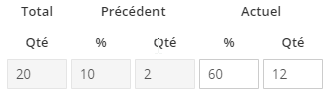
**Total, Quantity**: the total quantity indicated on the quote. This value is for information only and cannot be changed in the invoice.

**Previous: %, Quantity**: This is the quantity or percentage equivalent already invoiced in previous progress invoices. This value is for information only and cannot be changed in the invoice. In the case of the first progress invoice, these values are 0.

**Current: %, Quantity**: This is the quantity or percentage equivalent of the progress to date. These values are to be entered by the user creating the invoice. The choice of values for these fields will automatically generate the quantity to be invoiced for this invoice.

**Example:** To date, the actual progress of the project is 60%.

The Total section indicates a quantity of 20 items.

The Previous section indicates a quantity of 2, or 10%. At this stage, we can deduce that 10% of the progress has already been invoiced for this project.

It will be necessary to enter the value 60% in the Current section, which corresponds to a quantity of 12 (12 out of 20 items have already been physically used for the project). The system will automatically deduct a quantity of 10 to invoice the missing complement to reach 60% progress.

The line detail also contains the option: Progress completed, as a checkbox.

This option allows defining that the detail’s progress will not go further, even if 100% is not reached. If the option is selected, the fields in the ‘Current’ section will be read-only. It will not be possible to invoice this line on the next progress invoice as long as the option is selected.

**Good to know:** It is not possible to invoice a line beyond 100%. Logically, any surplus work must be subject to a validated quote that can be added to the invoice. It will also be possible to add a ‘free’ item or service line, not linked to a quote or purchase order. If such a line is added to a progress invoice, it will also be available for the next progress invoice.

Good to know: It is possible to organize the invoice for better readability by adding sections using the Add Section button, available at the bottom of the page. The section is automatically numbered, and an explicit title can be added.

The closing invoice #


Related references 🔗 #

  • How to generate a customer invoice
  • Customer purchase orders
Index
  • And in Kafinéa?
    • Direct creation
    • Creation from a quote
    • Creation from a purchase order
    • Detail lines
    • The closing invoice
  • Related references 🔗

An all-in-one software designed for SMEs. Take advantage of the automation capabilities and flexibility of our business management platform to make work easier for all your employees.

RESOURCES

Blog
Brand Guidelines
Distributors
Help
Security

Customer portal
ABOUT

About Us
Contact Us
Cookie Policy
FAQ
Legal Notice
Privacy Policy
Terms of Service

Electronic invoicing compatible solution
French Tech Grand Paris Logo
FINANCE

Accounting
Audits & KPIs
Invoicing
Purchases

MANAGEMENT

Documents
Inventory Management
Maintenance
Project Management

HR

Absence Management
Employees
Recruitment
Timesheets

CUSTOMER SERVICE

Interventions
Service Contracts
Tickets
Warranty Tracking

SALES

CRM
Points of Sale
Sales Automation
Subscriptions

© 2026 Madiasoft - Kafinea

24 rue Louis Blanc, 75010 PARIS, France

+33 1 70 06 05 41

Facebook Linkedin
kafinea logo svg
Gérer le consentement aux cookies
Pour offrir les meilleures expériences, nous utilisons des cookies pour stocker et/ou accéder aux informations des appareils. Le fait de consentir à ces cookies nous permettra de traiter des données telles que le comportement de navigation ou les ID uniques sur ce site. Le fait de ne pas consentir ou de retirer son consentement peut avoir un effet négatif sur certaines caractéristiques et fonctions.
Fonctionnel Always active
Le stockage ou l’accès technique est strictement nécessaire dans la finalité d’intérêt légitime de permettre l’utilisation d’un service spécifique explicitement demandé par l’abonné ou l’internaute, ou dans le seul but d’effectuer la transmission d’une communication sur un réseau de communications électroniques.
Préférences
Le stockage ou l’accès technique est nécessaire dans la finalité d’intérêt légitime de stocker des préférences qui ne sont pas demandées par l’abonné ou la personne utilisant le service.
Statistiques
Le stockage ou l’accès technique qui est utilisé exclusivement à des fins statistiques. Le stockage ou l’accès technique qui est utilisé exclusivement dans des finalités statistiques anonymes. En l’absence d’une assignation à comparaître, d’une conformité volontaire de la part de votre fournisseur d’accès à internet ou d’enregistrements supplémentaires provenant d’une tierce partie, les informations stockées ou extraites à cette seule fin ne peuvent généralement pas être utilisées pour vous identifier.
Marketing
Le stockage ou l’accès technique est nécessaire pour créer des profils d’internautes afin d’envoyer des publicités, ou pour suivre l’internaute sur un site web ou sur plusieurs sites web ayant des finalités marketing similaires.
  • Manage options
  • Manage services
  • Manage {vendor_count} vendors
  • Read more about these purposes
Voir les préférences
  • {title}
  • {title}
  • {title}
  • Features
    • Finance
      • Accounting
      • Audits & KPIs
      • Invoicing
      • Purchases
    • Management
      • Documents
      • Interventions
      • Inventory Management
      • Project Management
    • HR
      • Absence Management
      • Employees
      • Recruitment
      • Timesheets
    • Customer Service
      • Maintenance
      • Service Contracts
      • Tickets
      • Warranty Tracking
    • Sales
      • CRM
      • Points of Sale
      • Sales Automation
      • Subscriptions
    • Cross-Features
      • API
      • Electronic Signature
      • Extranet
      • Workflows
  • Pricing
  • Login
  • Discover the demo